PDF Maker - Image to PDF
- 4.1
- Rating
- 10.00M
- Installs
- Free
- Price
 Analysis by App-foxy
Turning a handful of phone images into one PDF sounds simple, but this is exactly the kind of task that can become annoying when the wrong pictures are selected, the order is unclear, or the finished file is difficult to find. PDF Maker - Image to PDF is built for that narrow productivity job. I tested it with the mindset of someone who needs a quick document rather than a full office suite, and my overall impression is that its value comes from staying focused: choose images, create a PDF, and move on.
The app is free to install and is suitable for Everyone, which makes it approachable for students, families, and people who only occasionally need a PDF. It comes from Battery Stats Saver and has reached over ten million installs, with a 4.1 average from around one hundred thirty-eight thousand ratings. Those figures suggest that it has found a broad audience, although popularity does not remove the small points of friction that can appear during a real conversion.
Where the conversion workflow can go wrong
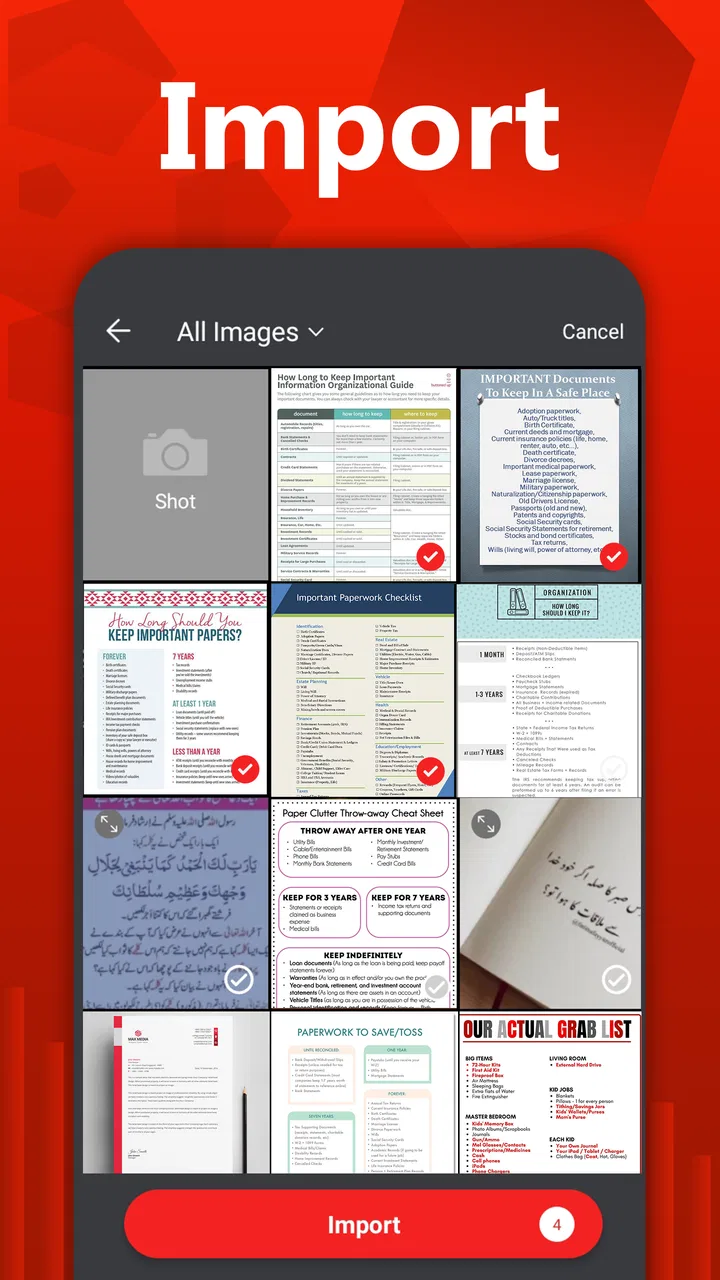
The first thing I noticed is that the task is only easy when the source images are already prepared. If your gallery contains several nearly identical photos, screenshots, cropped pages, and unrelated pictures, the selection stage becomes the real work. The app can convert images into a PDF, but it cannot decide which photo is the correct page for you. A few seconds spent checking the gallery first can prevent a badly ordered document later.
You May Also Like

 Pandora - Music & Podcasts
Pandora’s Music Is Easy to Start, but Harder to Recover
Pandora’s strength is its low-effort path from a seed to a station. Its weak spot is how much confidence it asks you to place in connection, setup, and quiet recovery.

 AccuWeather: Weather Radar
AccuWeather Review: A Quick, Clear Forecast for Everyday Decisions
For everyday plans, the best forecast is the one you can understand quickly. AccuWeather makes rain timing, radar, and local conditions easy to act on, with a few trade-offs.

 Hill Climb Racing
Why Hill Climb Racing Still Turns Crashes Into One More Run
A tiny car, a bumpy hill and one more upgrade: Hill Climb Racing keeps resurfacing because its simple chaos makes every near-miss feel personal.

 AliExpress - Shopping App
AliExpress Makes Global Shopping Feel Personal, but Shoppers Bear the Risk
AliExpress turns a global marketplace into a pocket-sized discovery engine. Its reach is useful, its shopping loop compelling, and its trade-offs easy to miss.

 Lords Mobile: Kingdom Wars
Lords Mobile Is a Kingdom-Building Routine, Not a Quick Match
A case-by-case verdict on the building, battles, device demands, and social commitments that make Lords Mobile rewarding for some players and exhausting for others.

 PDF Scanner app - TapScanner
TapScanner Makes Paperwork Easier to Capture, Check, and Share
TapScanner makes scanning with a phone feel less like a rescue operation and more like a dependable step in getting work done. Its capture tools are useful, though not flawless.
More From Our News Desk
View All News


That matters most when the PDF is made from photographed paperwork. Imagine receiving three pages from a school form through a messaging app, saving them to your phone, and then adding a fourth image by mistake. The resulting file may still be created successfully, but the problem is content selection rather than PDF creation. I recommend opening the images in the gallery before launching the converter and mentally numbering them. This simple habit is more useful than repeatedly rebuilding the file.
Page sequence is another likely sticking point. A PDF assembled from images is only as useful as its order. Receipts, application pages, notes, and handwritten exercises all become confusing when page two appears before page one. Before confirming the conversion, I would pause to inspect the thumbnails and look for an obvious first page, especially when the images were captured at different times.
The most important practical tip is to treat image preparation as part of the conversion. Good lighting, a readable crop, and a sensible filename or gallery position reduce mistakes before the app has any chance to process them. This is particularly helpful for users who are expecting the tool to behave like a document scanner. It is an image-to-PDF maker, so the quality of the source image remains central to the result.
Another point worth understanding is the difference between creating a PDF and improving a document. If a photographed page is tilted, shadowed, or hard to read, placing it inside a PDF does not automatically make it look professionally scanned. For casual sharing, that may be perfectly acceptable. For an important form or archival copy, I would first improve the image with the phone’s existing editing tools, then use the converter. That extra step can make a bigger difference than changing PDF apps.
What to check before the first conversion
On an Android phone, the minimum operating-system requirement is Android 8.0, so the app is available to many older devices as well as newer ones. I would still check the phone’s available storage before creating a document with many large photos. The images and the resulting PDF both need room, and a nearly full device can make an apparently simple export feel unreliable.
It is also worth deciding where the original images should remain. I prefer keeping them in the gallery until I have opened the finished PDF and confirmed that every page is present. Deleting the source photos too early creates an unnecessary recovery problem if the wrong images were selected or the output is not where I expected.
The current version is 7.1.1.1. If the interface looks different from instructions written for an older release, I would follow the labels currently shown on the device rather than relying on a remembered walkthrough. The core idea remains straightforward, but buttons and confirmation screens can move between releases. This is one reason I prefer a short, deliberate test conversion before using the app for an important document.
The app is free, but it includes optional in-app purchases ranging from $0.99 to $99.99 per item. That does not prevent basic use, yet it is a good reason to read any purchase screen carefully instead of tapping through automatically. For a person who only needs occasional image-to-PDF conversion, the free starting point is attractive. Someone who wants a broader set of editing or document-management tools should compare the paid path with a dedicated scanner or office application before spending money.
Privacy-minded users should also use sensible file hygiene. Avoid leaving sensitive documents in a temporary folder longer than necessary, and review the finished file before sharing it. A PDF can be easier to forward than a group of images, which is convenient but also means that an accidental extra page can travel with it. The app’s job is conversion; the responsibility for checking the contents still belongs to the user.
A reliable routine for everyday documents
My preferred routine starts outside the app. I photograph each page as squarely as possible, review the images, and remove obvious duplicates from the selection process without deleting the originals. Then I open PDF Maker - Image to PDF, choose only the intended pages, and check their order before creating the file. Once the PDF is ready, I open it immediately rather than assuming a successful conversion means a correct document.
This approach works well for a realistic everyday situation: a landlord asks for photographs of several signed pages, and I need to send them as one attachment. Instead of sending a confusing stream of images, I can select the pages in order, produce one PDF, open it to check the signatures and page sequence, and then share that single file. The benefit is not advanced document editing; it is reducing a small administrative task to a repeatable sequence.
For school notes, I would use a similar method but pay closer attention to readability. A handwritten page photographed in dim light may look acceptable in the gallery and become frustrating when viewed inside a PDF. I would zoom into one or two pages before converting the full set. If the writing is already faint, retaking the image is usually faster than trying to diagnose the PDF afterward.
Receipts create a different challenge. They are often long, narrow, and photographed against a cluttered background. I would crop them before conversion when possible, because the PDF will preserve the image’s framing. This can also make the final file easier to read on a phone. The trade-off is that aggressive cropping can remove dates, totals, or merchant details, so I would keep the original image and inspect the crop carefully.
For a quick sharing task, the app is more convenient than opening a full office suite. A large office application may offer templates, text editing, cloud integration, and annotation, but those features can slow down a simple conversion. Here, the focused workflow is the advantage. On the other hand, if I need searchable text, signatures, page annotations, or sophisticated scanning correction, I would choose a more specialized document tool instead of expecting this app to cover every stage.
Recovering when the result is not right
When a PDF looks wrong, I would troubleshoot in a fixed order. First, I would open the source images and verify that the problem was not already present there. If one page is blurry, rotated, or incomplete in the gallery, recreating the PDF will not fix it. I would correct or replace that image, then repeat the conversion with a smaller, clearly identified selection.
Next, I would check the page order. A misplaced page can make the file seem broken even though the conversion itself worked. Rebuilding with images selected in a deliberate sequence is often cleaner than trying to work around a confusing result. If the file is unexpectedly large, I would look at the original photo sizes and reduce unnecessary image dimensions before converting, while keeping enough detail for the document to remain readable.
If the output cannot be located, I would avoid creating many duplicate versions immediately. I would first inspect the app’s visible save or share flow, then use the phone’s file search or recent-files view. The aim is to identify whether the PDF was created but saved somewhere unfamiliar, rather than assuming the conversion failed. Keeping one clearly named test file can make this easier than producing a dozen unnamed copies.
A useful recovery technique is to make a two-page test. Choose two representative images, create a small PDF, and open it. If that works, add the remaining pages in a second attempt. This separates selection or file-size issues from problems with a particular image. It is especially helpful when a large batch contains one damaged, unusually large, or incompatible-looking picture.
I would also avoid changing several things at once. If I switch folders, edit every image, reinstall the app, and rename files simultaneously, I lose track of what solved the problem. A calm sequence—verify the image, test a small batch, check the saved result, then expand the batch—gives a much clearer answer and usually takes less time.
When the app is not the cause
Some complaints that appear to be conversion failures actually come from the phone. A device with very little free storage may struggle to create or save a large document. A gallery that has not finished downloading cloud images may show previews that are not fully available locally. In that situation, selecting the image again after it has been downloaded can be more effective than repeatedly tapping the conversion button.
Sharing problems can also happen after the PDF has already been created. If the file opens correctly on the phone but fails to send through a messaging service, the service may be imposing an attachment limit or handling the file differently. I would test the PDF in the phone’s file viewer first, then try a different sharing method. This distinction matters because recreating a perfectly good PDF will not solve a delivery restriction.
Image quality is another outside factor. A PDF is a container, not a magic clarity filter. Motion blur, glare, deep shadows, and tiny handwriting remain visible after conversion. For a document that must be legible to someone else, I would retake the photograph in brighter, even light and keep the camera parallel to the page. If the task requires automatic edge detection, text recognition, or searchable content, a dedicated scanning application is likely the better choice.
Users who need a polished business workflow may also outgrow this app. A full document suite is preferable when the job includes editing text, combining existing PDFs, adding comments, applying signatures, or organizing files across several devices. PDF Maker - Image to PDF makes sense when the starting point is images and the desired result is a straightforward PDF. It is not the option I would choose as a complete replacement for an office or scanning ecosystem.
The age rating of Everyone is appropriate for its basic purpose, and the low barrier to entry makes it reasonable for occasional household use. Still, younger users handling school papers or family documents should be shown how to review page contents and avoid sharing the wrong file. The simplest interface does not eliminate the need for that final human check.
Who should use it and who should skip it
I would recommend this app to someone who regularly receives images and needs to package them into a single PDF without learning a complicated editor. It suits students submitting photographed work, renters sending paperwork, small sellers organizing receipts, and families keeping a few pages together for easy sharing. Its strongest quality is focus: it addresses a common phone task without requiring a full productivity suite.
I would be more cautious about recommending it to someone who expects a scanned-document experience. If you need automatic perspective correction, text recognition, searchable pages, or detailed control over compression, look for an app designed around scanning rather than simple image conversion. Likewise, professionals who process confidential files every day should evaluate the complete workflow, including storage and sharing habits, instead of choosing solely on the convenience of a free converter.
The optional purchase range also deserves a practical decision. Occasional users should begin with the free experience and see whether it handles their normal image sets comfortably. Heavy users should compare the cost of any desired upgrades with alternatives that combine scanning, editing, and file organization. A low initial price is useful only if the app still matches the work you actually need to do.
After testing the workflow, my advice is to keep the app for quick, image-led jobs and not force it into tasks it was not designed to solve. Prepare the pictures, select carefully, verify the output, and keep the originals until the PDF has been checked. Those habits address most of the friction I would expect from this kind of tool and make the conversion feel dependable.
My practical verdict
PDF Maker - Image to PDF is a sensible productivity app for turning selected phone images into one shareable PDF. It is free to start, works on devices running Android 8.0 or later, and its broad adoption shows that the basic use case is clearly useful to many people. I like it most when I need a fast result from already-correct images and do not want the weight of an office suite.
Its limitations are equally clear. It does not make poor photographs sharp, remove every document-making decision, or replace a dedicated scanner and PDF editor. The best results come from a careful selection routine rather than from expecting the app to repair messy source material. That is not a serious flaw for its intended purpose, but it is an important boundary.
My recommendation is straightforward: use it when your goal is image-to-PDF conversion, and choose another tool when your goal is full document production. For a few pages of receipts, forms, notes, or signed paperwork, it can save time and reduce attachment clutter. Just open the finished file before sending it, because that final check is what turns a quick conversion into a reliable everyday workflow.
FAQs for PDF Maker - Image to PDF
01What is PDF Maker - Image to PDF used for?
PDF Maker - Image to PDF is designed to convert photos and image files into PDF documents directly from a mobile device. It can be useful for scanning receipts, school notes, forms, documents, and multiple pictures into a single file. After selecting images, users can generally arrange their order, adjust the output, and save or share the resulting PDF without needing a separate computer program.
02Can I combine several images into one PDF document?
Yes, the app is mainly intended for creating a PDF from one or more images. You can select multiple pictures from your device and organize them before generating the file, which is convenient when making a document from several pages. The final result depends on the quality and orientation of the original images, so reviewing the page order and cropping before exporting is recommended.
03Does PDF Maker - Image to PDF work without an internet connection?
For basic image selection and PDF creation, the app may work offline because the conversion can be performed locally on the device. However, certain features may depend on internet access, including advertisements, cloud-related options, online sharing services, or additional tools. If offline use is important, test the main conversion process first and confirm that the required files are stored locally.
04Are the PDFs created by the app easy to share and save?
Once an image-to-PDF conversion is complete, the document can typically be saved on the device and shared through compatible applications such as email, messaging platforms, cloud storage, or file managers. The exact options depend on your operating system and installed apps. It is a good idea to check the output folder and rename important files so they are easier to find later.
05Is PDF Maker - Image to PDF free to download and use?
The application may be available as a free download, but free versions can include advertising, optional purchases, or limitations on certain functions. Before using it for regular work, review the store listing for information about subscriptions, premium tools, privacy practices, and supported devices. Users handling sensitive documents should also consider the app’s permissions and avoid importing private files unless they are comfortable with its policies.
Pros
- Converts multiple images into one PDF quickly
- Supports common photo formats from your device
- Lets you rearrange images before creating the file
- Useful for scanning receipts
- notes
- and documents
- Simple interface suitable for occasional users
Cons
- Some features may require a premium upgrade
- Output quality can vary with low-resolution source images
- Large photo collections may take longer to process
- May include ads in the free version
- Limited editing tools compared with full PDF apps

PDF Maker - Image to PDF
Gallery